VarView
OpenGL Visualization Tool
| Home | Help |
|
VarViewOpenGL Visualization Tool |
|
The examples on this page require that you download and install the software.
Type or cut and paste (use select and right click) each of the commands below into the command window and hit enter to see the results. First open the Excel demo sheet, using Start->Programs->VarView->VarView Demo Spreadsheet. These demos will not work without the spreadsheet open. It must also be the only instance of Excel running (check using Task Manager if you have problems). The commands are shown with a preceeding ">".
| > surface ru plot1 | |
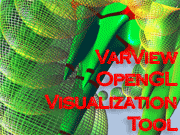
| Plots the Excel range plot1 (on sheet Plot1Data). This is a wavy surface. If you hit F9 in the spreadsheet to recalculate, you will see that the plot updates too. The ru stands for range-update, indicating the type of argument to use. Left click and hold the mouse down in the plot window to make the surface move. Mouse wheel to zoom in and out. Type w to convet to a wireframe and s to convert back to a solid. | |
> surface ru plot1 cm spring 100 color > smoothwhite |
|
| As above, except that the material is colored using a colormap called spring with 100 colors. smoothwhite (which should be entered as a separate command) makes the light white and turns shading onto smooth mode. Type l in the command window or graphics window to turn the lights off. This shows how very important lighting is to our perception of the 3d image! | |
> surface x -3 3 y -1 1 ru plot1 tex2 green outline -3 3 -1 1 -1 1 xyz 1 1 1 > fullscreen |
|
| Changes the proportions of the plot in the x and y directions. Uses a texture bitmap stretched over the surface. Typing fullscreen makes the plot take up the whole screen. Shift+left click to restore to usual size. | |
| > image b green | |
| Shows the actual image bitmap used to texture the previous plot. | |
| > xyzplot ru plot2 | |
| Produces an xyz scatter plot of the Excel range plot2. Also refreshes on F9. | |
| > surface x 0 1 y 0 1 ru plot1 add xyzplot ru plot2 | |
| Combines the two previous plots in one. You can also do this by executing the first plot and then add xyzplot ru plot2. Note specification of the x and y range for plot1, which makes sure the two plots are properly aligned. | |
> anno on > title My First Example |
|
| Adds a title to the plot | |
| > color bg @slate_grey_light | |
| Makes the background slate_grey_light. The "@" means the following variable is a built-in color name, which the command handler expands to its RGBA values. | |
| > color fg 255 200 100 255 | |
| Sets the foreground color explicitly using RGBA. Color values are entered as bytes, ranging from 0 to 255. | |
| > fontsize 30 | |
| Sets the fontsize for the title | |
| > fontname copperplate gothic bold | |
| Animates the plot | |
| > arg 2 outline 0 1 0 1 0 1 | |
| Add a wireframe cube bounding box around the surface. Now try moving the model by holding the left mouse button down and moving the mouse. | |
> add label position 1.1 0 0 text "x-axis" > add label position 0 1.1 0 text "y-axis" 3d > add label position 0 0 1.1 text "z-axis" size 1.5 fontname "French Script MT" |
|
| Adds floating labels for each axis. These can be either 2d or 3d text. User can control size and font type for each label. 2d text faces the user and does not change size; 3d text has a fixed orientation relative to the model and is scaled differently. | |
| > modelview get | |
| Get the "modelview" matrix. This captures the current orientation of the model in the window. Enter r to reset the position. Then enter @pos to re-capture your original position. Type echo @pos for the defintion of the abbreviation pos. This is useful for using script to produce image files. | |
| > m | |
| Animates the plot | |
| > gif c:\temp\myFile.gif | |
| Produces a gif plot of the image in the active window. | |
| > tile | |
| Tiles all graphics windows. Also try cascade. | |
| > save c:\temp\scriptFile | |
| Saves all inputs that you've typed into the command window in a file. The file can later be loaded by typing load scriptFile, or simply scriptFile. | |
| > kill all | |
| Kills (deletes) all the graphics windows. @kill is an abbreviation for kill all. | |
| > clear | |
| Clears all commands you have entered into the command window. | |